


Choosing a DAW is a weirdly personal thing. Most of us end up with one of the familiar names, learn its shortcuts, build our templates, complain about it often, and then keep using it for years.
That is part of the challenge for SoundBridge. It has been around for a long time (originally as Lumit), and it has some very innovative features, especially when it comes to collaboration, but it still does not come up in the DAW conversation as often as Pro Tools, Logic Pro, Cubase, Ableton Live, Reaper, Bitwig, or FL Studio.
After spending time with SoundBridge and going deeper into its Virtual Collaboration features, I think that it deserves more attention. SoundBridge is a solid, streamlined DAW, but remote collaboration is where it makes its stand and differs from the usual “another DAW” pitch.
SoundBridge as a DAW
SoundBridge is built around a 192 kHz floating-point audio engine with ASIO support on Windows and Core Audio support on macOS. It runs on Windows 10/11 and macOS Sonoma 14.0 or later, supports VST plugins, and comes in free and paid versions. The free version uses the same core engine but is limited to 10 tracks and does not include the collaboration tools and some premium features.
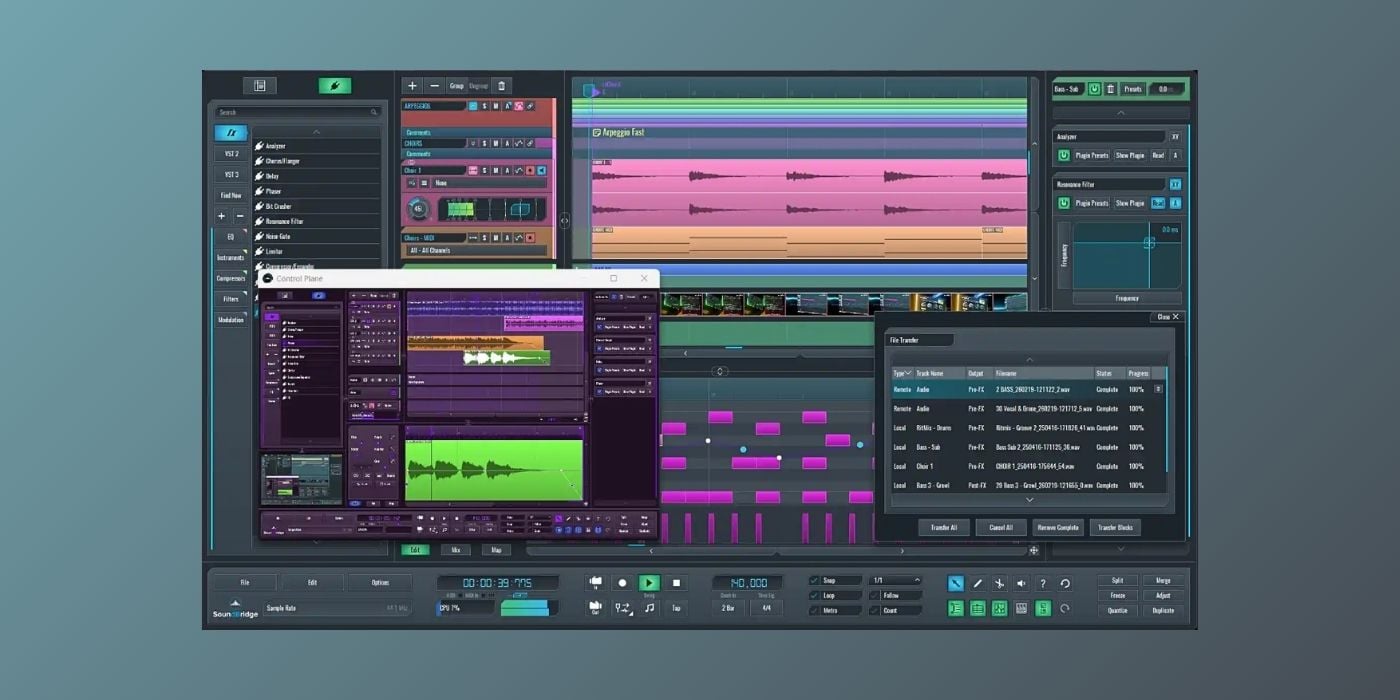
As a normal DAW, SoundBridge made a solid first impression on me. The interface is clean, easy to understand, and much less intimidating than some full-featured production environments. You get the expected transport bar, sequencer, mixer, plugin browser, insert rack, audio and MIDI editors, automation tools, built-in effects, a sampler in the paid version, and surprisingly good video support for scoring work.
I like the layout because everything feels close enough that you do not spend half your time opening menus. Moving blocks around, editing MIDI, adding automation, organizing tracks with colors and markers, and working in the mixer all feel familiar enough. There are more feature-packed DAWs, but SoundBridge does not feel like a toy.
Overall, as a DAW, SoundBridge is comfortable, clean, and capable. But the reason I would keep it installed is Virtual Collaboration.
Virtual collaboration
The simple version is that SoundBridge lets two users connect directly inside the DAW, talk over webcam and talkback, stream the session, record remote MIDI and audio, transfer files, and even control the other person’s SoundBridge instance when permission is granted.
That is more interesting than simply streaming your DAW output to someone in a browser. A virtual session starts with the producer creating a session token and sending it to the musician. The musician joins using that token, and SoundBridge syncs markers, tempo automation, time signature automation, and playhead position, while the producer keeps control of those project-level items.

As soon as the session starts, SoundBridge creates a dedicated Virtual Collaboration track on both systems. It is routed separately from the master bus, directly to the selected audio output, and becomes the communication and audio bridge between the two users.
The built-in video player also becomes a webcam and talkback system. You can choose the camera and microphone, set talkback level, and keep the conversation inside the session rather than juggling a DAW, Zoom, screen share, and a separate audio streaming tool. Talkback is muted automatically during recording, which is one of those small details that matters in practice.
The same video area can switch into a control view that shows the other person’s SoundBridge instance. If the musician enables Allow Remote Control, the producer can create tracks, adjust audio settings, change buffer size, open plugins, and generally help set up the remote system. This is one of my favorite parts because remote sessions often fail when the technical setup gets in the way of the music. The guest can turn remote control off again when they are done.
It’s surprisingly smooth once you get it going for the first time.
Remote recording
Recording takes a little setup, but the logic totally makes sense. The musician creates the local track they want to record, and the producer creates a matching track and chooses the remote track as the input. MIDI can arrive as MIDI data, while audio can be taken from the guest track output, including pre-effects, post-effects, or post-mixer.
If the musician is playing a VST instrument, you can record the MIDI and also record a bounced audio track from that instrument. That matters because plugin states do not magically move between computers. If the guest plays Vital, the producer does not automatically receive Vital with the same preset, so capturing the audio gives you the sound while the MIDI remains editable.
Once the tracks are routed, recording feels closer to a normal session. Arm the track on the producer side and the corresponding guest track is armed too. The producer can press record, the musician plays, and the recorded MIDI or audio lands back in the producer’s project after the pass. Loop recording works too, with take lanes arriving in the right place on the timeline.

SoundBridge’s latency approach is worth a closer look because, of course, “zero latency” can sound like marketing magic. The system uses pre-buffering to make it work. When recording starts, there is a short delay while the backing track is buffered for the musician. After that, the musician hears the track in sync and records locally, so the performance can land correctly instead of fighting the round-trip latency of the internet.
If the connection gets worse, the recording is still made locally on the guest machine. If enough of the backing track is buffered before recording, the take can survive even if the transfer afterward takes longer. If the connection is lost entirely, the session ends, but the local-recording approach is still safer than relying on a live stream as the only copy.
There is also manual block and file transfer. If the musician already recorded a bass part or imported a sample on their side, they can place it on the timeline, route the matching track, and transfer the block so it lands at the correct position in the producer’s project. It is not just “send me a WAV, and I’ll line it up later.”
You can create a custom monitor mix for the musician, too. The producer can route a return track to the remote side and send whatever balance the musician needs. The system is designed for two peers, but the guest side can still record multiple inputs, so a remote room with several musicians or a multi-input interface is possible in principle.
There are a few reasons I felt this is closer to real collaboration than the usual remote workflow. The big one for me is feedback. Instead of sending someone a bounce, waiting for a take, hearing that the timing is wrong, sending notes, waiting again, and eventually losing the feeling of the moment, you can pretty much guide the session as it happens.
The second is the pure fun and social part of it. Music production can get lonely fast, especially in bedroom studios. Virtual Collaboration does not replace being in the same room with your friends, but having the DAW, talkback, video, control, recording, and file transfer in one place gets much closer than the usual mess of apps.
It can also be used for mix review. You can invite someone into a session, stream the mix from SoundBridge, and let them react while you work. That is not the same as remote tracking, but it is a useful side benefit, especially when you are mixing for an artist or client who wants to hear changes in context.
Pricing
The caveat is that everyone involved needs the right access. Virtual Collaboration is included with the Everything Bundle subscription, which is $9.99/month after a 14-day trial. Free tier users and lifetime license owners can add managed Virtual Collaboration access for $4.99/month.
Lifetime license owners can also run their own Linux + CoTURN TURN server, which removes the need for a managed collaboration subscription but requires renting a server, setting up a domain, configuring SSL, and entering custom endpoints in SoundBridge. It is excellent for privacy-conscious users, studios, and schools, but not something I would expect a casual beginner to configure on a Sunday afternoon.
The lifetime SoundBridge license is $199.99 and removes the free version’s track restrictions while adding the premium feature set. The free version remains useful for learning and sketching, but the collaboration tools are clearly the premium hook.
I would absolutely recommend SoundBridge for Virtual Collaboration. That is the part that makes it worth paying attention to, because collaboration is built into its workflow rather than bolted on afterward. It is a very serious option for producers who often record remote musicians, as well as for friends looking to collaborate over long distances.
Download: SoundBridge (Free version and paid plans available)
Last Updated on August 5, 2026 by Tomislav Zlatic.
